
Settings
The fields that determine how the point of sale works are spread over a few pages under Settings. The group Settings > Point of sale is only shown while the point of sale is switched on.
Company profile
- Name: is the recipient in the EPC QR code that the buyer scans at the counter.
- IBAN: is the account the EPC QR code and the manual bank transfer pay into. Without a valid IBAN both are marked ’no IBAN’ under Payment links and skipped at checkout.
- Default VAT rate (%): is the VAT rate a new product starts with, also when you create one while charging an amount.
- Default description: is the description in the EPC QR code when you settle the shopping cart. A tab uses the name of the tab instead.
Point of sale > Users
This page is only there when ‘Multiple users’ is switched on under Features. It lists every user with their name and e-mail address. Click the plus sign to add a colleague with a name, an e-mail address and a password; they log in with those. Click a user to edit them:
- Name: is shown with the sale. With multiple users on, POS receipts and tabs get a column with the user who made the sale.
- E-mail address: is the username. You can only change your own.
- Language: is the language of the application for this user.
- Mail on a reported payment: whether this user gets an e-mail the moment a buyer reports a payment on the payment page.
Point of sale > Catalogue
Here you manage the products that ‘Sales’ shows. Products can be put in groups: a group is a folder, with the products inside it. Groups come first, products without a group below them. Click the plus sign to add a group or a product, click one to edit it, and delete it from the edit page.
- Group (name): is the name of the folder.
- Name: is the name of the product, as it is shown at the counter and on the receipt.
- Price: is the price including VAT.
- VAT rate (%): is the VAT rate of this product.
- Group: is the folder the product is in. Leave it empty and the product is shown outside the folders.
Point of sale > Payment links
This is where you set up the ways to pay that the checkout offers. The EPC QR code works with most banking apps, but not with all of them. In the Netherlands, for example, Rabobank and ABN AMRO cannot read it yet. As a fallback you add payment links from your own bank or from Tikkie; they appear in the drop-down menu underneath the QR code. Payment links are optional: without them the buyer can still pay by manual bank transfer.
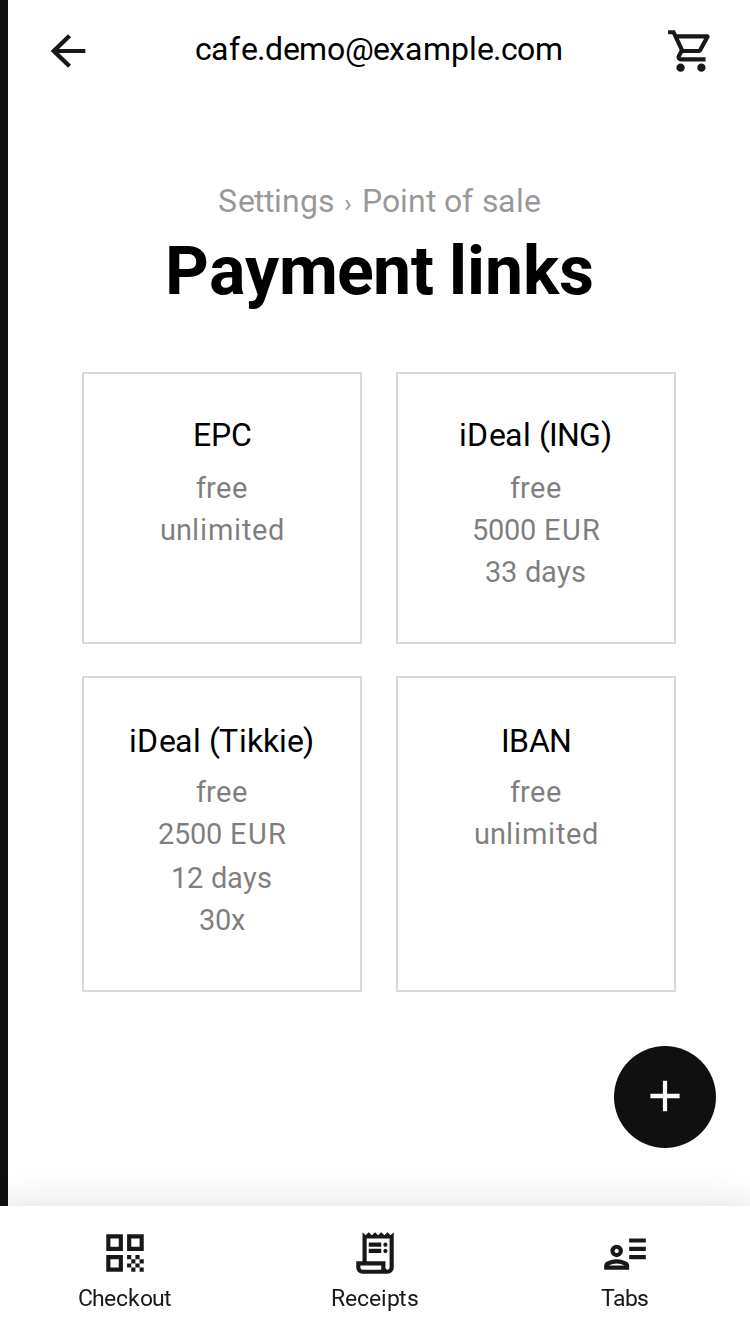 The overview of the payment links
The overview shows a tile per way to pay: EPC, IBAN, Ponto and every payment link you added. A tile shows whether the way to pay is free or paid, and what is left of it: unlimited, an amount in EUR, a number of days or a number of payments. A tile is greyed out when it cannot be used, because there is no IBAN, Ponto is off, or the link has expired or is used up.
- EPC: is the EPC QR code, made from the name and IBAN of your company profile. You only set its Priority here.
- IBAN: is the manual bank transfer. It shows the IBAN so a buyer whose banking app cannot scan the EPC QR code can type it over. You only set its Priority here.
- Ponto: is a payment request the buyer signs at their own bank, drawn as a QR code. It needs a bank connection under Settings > Ponto; without one the page offers to connect Ponto. Account is the bank account of that connection, ‘Offer at checkout’ switches it on or off and Priority sets its place. Ponto charges a fee per payment request.
- Payment link: is a link from your own bank or from Tikkie, or a paid link from PayPal or Stripe. Choose the Type, paste the full link into Payment link and set the Priority. Create the link with an adjustable amount, so it can be reused for every sale.
Each way to pay has its own fee and maximum total per link. When a link has expired, or the amount is higher than the link allows, the checkout moves on to the next way to pay.
| Way to pay | Fee | Limits |
|---|---|---|
| EPC QR code | free | none |
| Manual bank transfer (IBAN) | free | none |
| Rabobank | free | 5000 EUR |
| iDeal (ING) | free | 5000 EUR |
| Knab | free | 500 EUR |
| ASN | free | 3000 EUR |
| ABN AMRO | free | 2500 EUR |
| iDeal (Tikkie) | free | 2500 EUR |
| bunq.me | free | 1500 EUR per week |
| Pay with your bank (Ponto) | paid | none |
| PayPal | paid | none |
| Stripe | paid | none |
Knab also caps all outstanding payment requests together: their total amount cannot exceed 5000 EUR. bunq.me is free on a personal bunq plan; on a business plan bunq charges 0.27 EUR per payment. Its 1500 EUR is what all your bunq.me links together may take in per week, and the link itself never expires. The buyer needs no bunq account and pays with iDEAL, Wero, Bancontact or a card.
The full limits of the banks, including their validity and number of payments, are in our post on instant payment notifications, which also lists which banks send a push message when a link is paid.
The Priority decides the order at checkout: the ways to pay are sorted from the lowest number to the highest, the first one that can be used is opened and the others are in the drop-down menu underneath the QR code. EPC, IBAN and Ponto take part in the same order as the payment links.
Features
Under Features you switch on what you work with. These switches sit in the first group of Settings, so you find them even while the point of sale is off.
- POS enabled: switches the point of sale on or off. Off, and Sales, POS receipts and Tabs leave the main menu and the group Settings > Point of sale is hidden.
- Payment page enabled: switches the payment page on or off, see the payment page settings.
- Stock enabled: adds Stock to Settings, an overview of all your products, including those outside the catalogue.
Under the heading Point of sale are the features of the point of sale itself. It is only shown while the point of sale is on.
- Multiple users: adds Users to Settings > Point of sale, so colleagues can get an account of their own, and adds the user to POS receipts and tabs.
- Allow tabs: adds Tabs to the main menu and the ‘On account’ button to the checkout, so an order can be settled later.
A switch is saved the moment you flip it.
