
Walk-through
This page takes you through a sale from the first click to the receipt, screen by screen. Click a screenshot to see it at full size.
Selling
‘Sales’ in the main menu shows the products you sell. When you click a product it is added to your shopping cart and the number 1 appears next to the cart (or the number is increased).
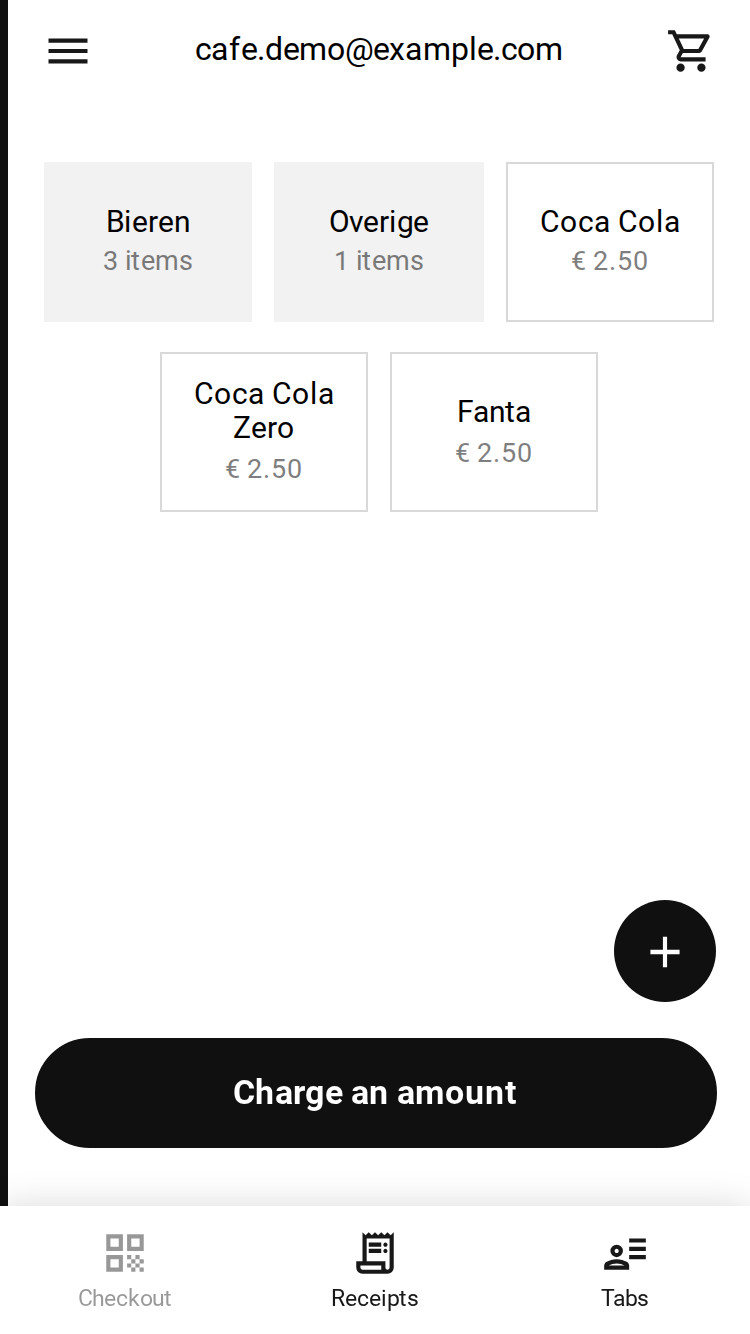 The overview of the products
If you do not have any products yet, click the shopping cart in the top right corner. There you can choose ‘Charge an amount’. During checkout you can create your first product right away. This product is automatically put into your shopping cart and (if you indicate so) added to your product catalogue as well.
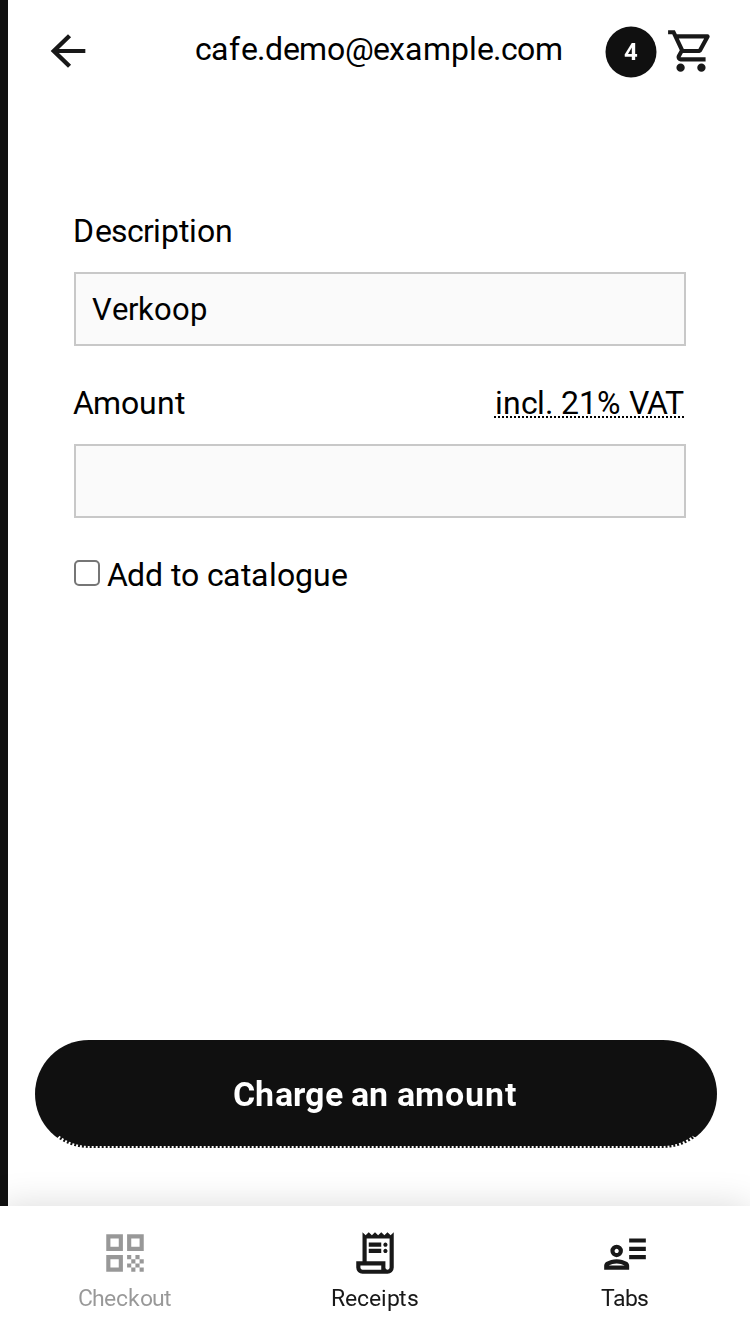 Charging an amount in the shopping cart
Checking out
During the checkout process a QR code appears. You (the seller) show this QR code to the buyer. The buyer scans the QR code with their phone and copies the amount from the screen. The buyer pays through their own trusted banking app. Not every banking app can read the EPC QR code, so the drop-down menu underneath it offers your payment links as a fallback.
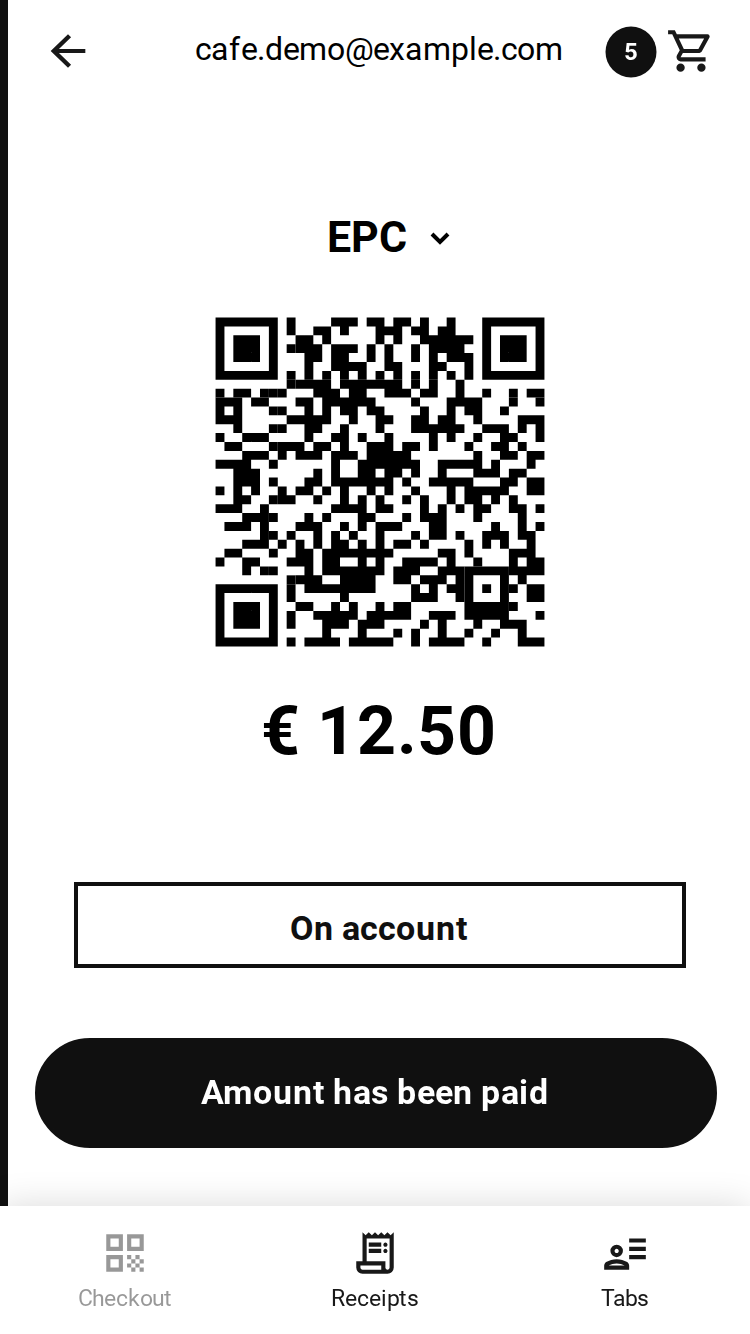 The QR code with the amount
Once the buyer has completed the payment you press the ‘Amount has been paid’ button. You will then see the receipt page. When you click the amount you get a detailed specification. You can choose to e-mail the receipt to the customer, or you can choose ‘No receipt’.
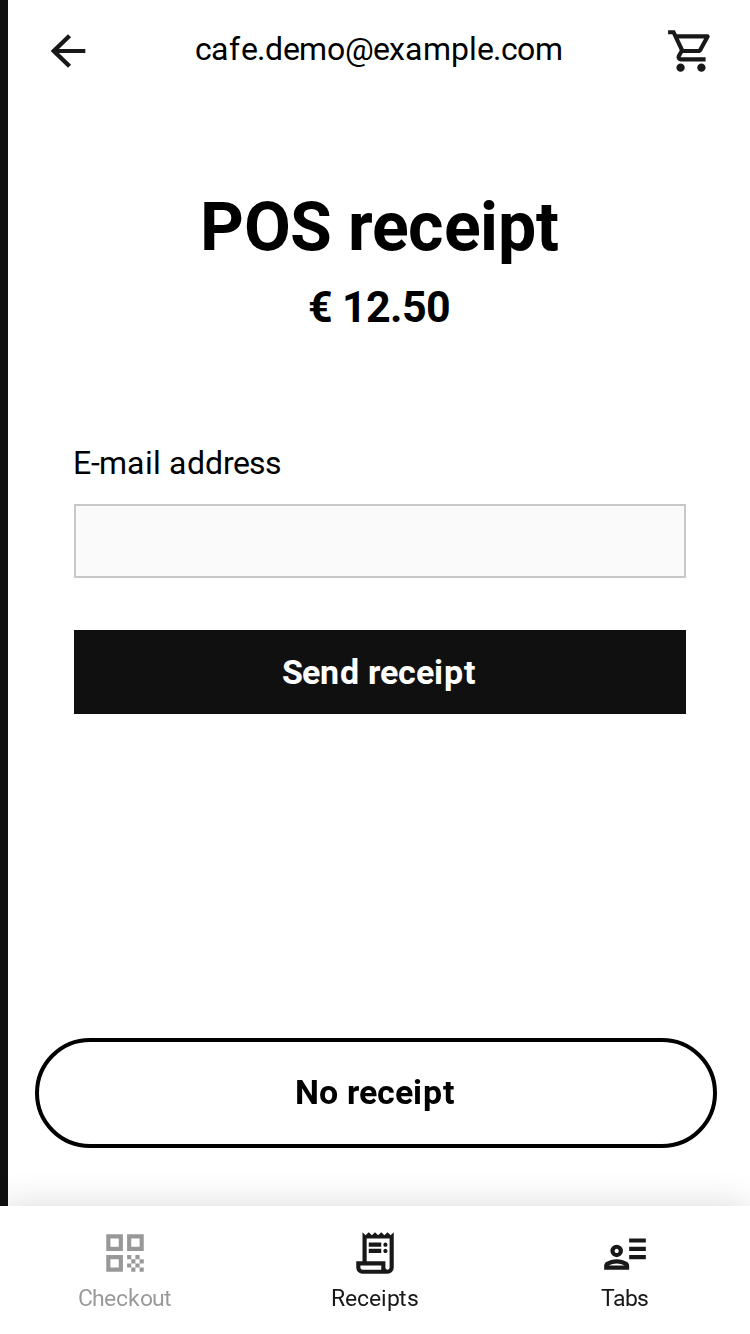 You can send the receipt by e-mail
Your shopping cart is now empty and you can find your order under ‘POS receipts’ in the main menu. Your payment is complete and you are ready to process the next order.
Tabs
Tables and regulars have one thing in common: they are orders you do not want to settle straight away. That is what tabs are for. You open a tab, put products on it as the evening goes on, and the customer pays at the end.
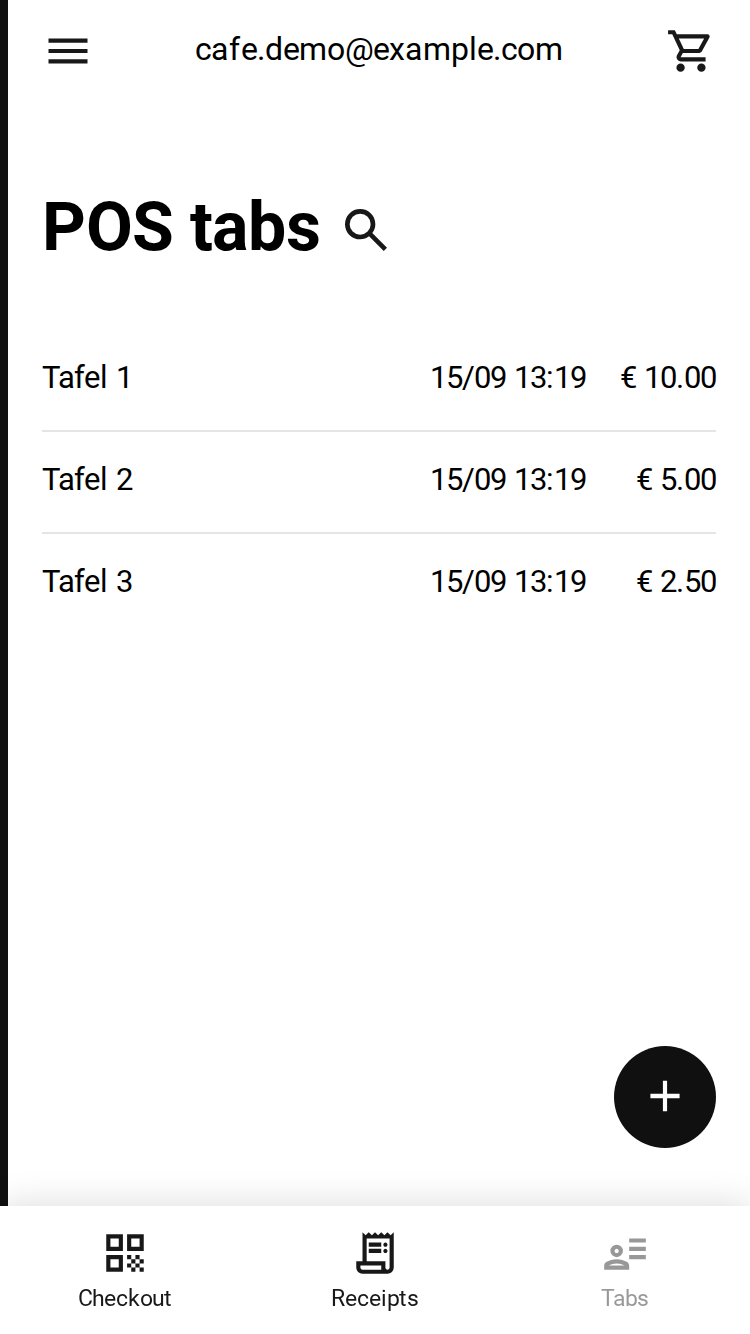 The open tabs, with the time each one was opened
A tab holds on to its own prices, so changing a price or editing a product does not change a tab that is already open. And because the cash register supports more than one user, a colleague can settle the table just as easily as you can. Tabs are optional: you switch them on under ‘Settings’.
